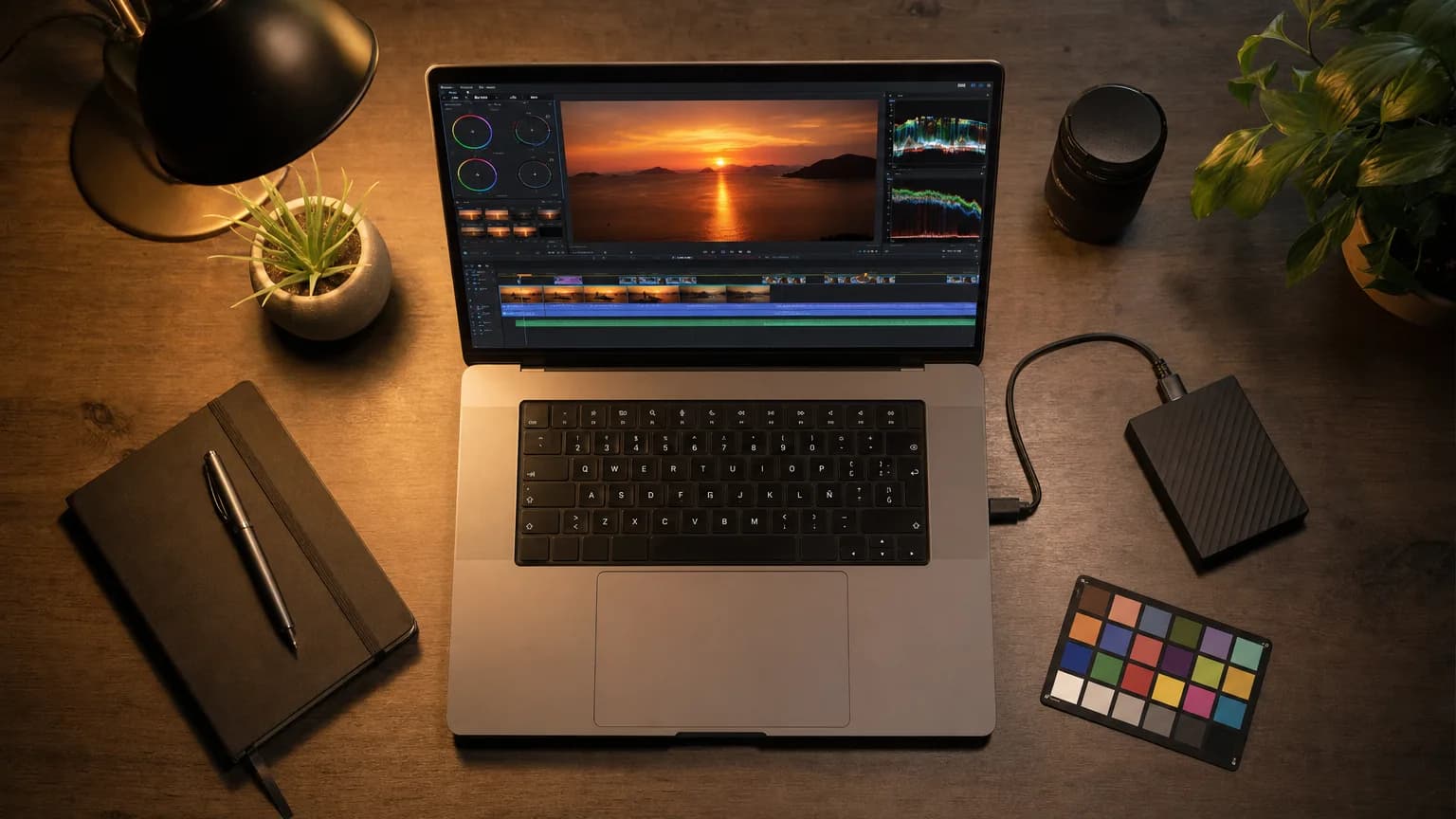
There are two ways to get HDR out of SDR footage. You can re-grade it by hand in a colorist's suite, which takes a trained eye and hours per minute of footage. Or you can run it through a converter that remaps luminance and color per frame. This post is about the second one.
Before you upload: pick the right clip
Check first whether the clip is already HDR, because a good number are. Anything from an iPhone 12 or newer usually is, and the same question comes up for Android, GoPro and log footage. The by-source pages answer it per device, and converting iPhone video is the one most people need.
Conversion quality is decided mostly by what you feed it.
Good candidates
- Properly exposed footage with highlights that are bright but not fully clipped.
- Log, flat, or lightly graded material, the range is still in the file.
- Anything with a real light source in frame: a window, a sunset, a neon sign, a reflection. These are where headroom becomes visible. Worked examples: an interior with a window over the sink and a sunset flyover over water.
- Skies, water, and skin tones, where 10-bit gradients kill visible banding.
Poor candidates
- Screen recordings and slide decks. Flat synthetic color has no dynamic range to recover.
- Footage already crushed by a heavy stylized grade, the range was thrown away before you got here.
- Clips where the highlight you care about is fully blown. If every channel is pinned at maximum, there is no detail underneath to bring back.
The limits
- Formats: MP4, MOV, or WebM.
- Length: up to 60 seconds per clip.
- Size: up to 500 MB.
- Resolution and frame rate: preserved exactly. Nothing is resized or retimed.
Sixty seconds is the current ceiling, so for longer material, trim to the section you actually need before uploading. If you are evaluating quality, a 10-second cut is enough to judge.
The steps
- Sign in and check your balance. Conversions draw from a dollar balance. Top up any amount from $50, or subscribe if you convert regularly, plans exist only to lower your per-second rate.
- Drop the file in. Duration and resolution are read in the browser, so the price appears before you commit to anything.
- Confirm the quote. $6.00 per 10 seconds at 1080p and below, $12.75 per 10 seconds above 1080p, $0.60 minimum. A 12-second 1080p clip is $7.20.
- Wait. Conversion runs per frame, so a longer or larger clip takes longer. You can close the tab, an email lands when it is done.
- Download the master. A 10-bit H.265 MP4 with HDR10 metadata, no watermark.
If a conversion fails, the charge returns to your balance automatically, usually within minutes. You do not need to ask.
How to verify you actually got HDR10
"Looks brighter" is not proof. Check the file:
ffprobe -v error -select_streams v:0 \
  -show_entries stream=pix_fmt,color_transfer,color_primaries,color_space \
  -of default=noprint_wrappers=1 output.mp4
You want to see:
pix_fmt=yuv420p10le, 10-bit, not 8-bit.color_transfer=smpte2084, the PQ curve. This is the HDR10 marker.color_primaries=bt2020andcolor_space=bt2020nc, the wide container.
If color_transfer still says bt709, whatever you are looking at is SDR with the contrast pushed, not HDR.
On a Mac you can also open the file in QuickTime and check Window → Show Movie Inspector; HDR files report their color profile there. On iOS, an HDR video shows a visible brightness lift above the rest of the UI when it plays, that is the display driving past its SDR white point, which an SDR file cannot trigger.
VLC gives you the same numbers without a terminal. Open the file, then Tools → Codec Information on Windows and Linux, or Window → Media Information on a Mac, and look at the video track's details panel. The transfer function and color primaries VLC parsed from the container should read the same smpte2084 and bt2020 values ffprobe reports, that is VLC reading the file's actual metadata, not VLC's opinion of how the picture looks on your screen, which is a separate thing and can be tone-mapped even when the file itself is correct.
A real HDR TV will usually tell you too. Most sets flash a brief on-screen badge, often just the word "HDR" or "HDR10", in the source or info overlay the moment they detect an HDR10 signal on the input, the same overlay that shows resolution and frame rate when you press the TV's info button. If that badge never appears while your file plays, either the HDR10 metadata did not survive whatever got the file onto that screen (a re-encode somewhere in the chain, a screen-mirroring app that flattens to SDR before sending), or the TV negotiated down to SDR for a reason that has nothing to do with the file, see where HDR video actually plays for the display and cable side of that.
When the result looks disappointing
A file that passes every check in ffprobe can still look underwhelming on screen. Before assuming the conversion failed, check these in order:
- The source had nothing left to expand. If the highlight you cared about was fully clipped at capture, every channel pinned at maximum, there is no texture underneath for the conversion to recover. It renders that region cleanly and at full brightness, it does not reconstruct detail that was never recorded. See SDR vs HDR for what conversion can and cannot do to a file.
- You are watching it somewhere that tone-maps. Most laptop and desktop monitors, most browsers, and a lot of messaging apps quietly convert HDR10 back toward SDR before displaying it, and it looks fine, just flat. The screen is the bottleneck, not the file. Judge quality on the file's actual metadata first, then on an HDR TV or a recent phone second.
- The clip was a screen recording, a slide deck, or heavily stylized before you uploaded it. Flat synthetic color and footage already crushed by a hard grade have no dynamic range in the file to begin with, so there is nothing for a conversion to bring back regardless of how well it runs.
- Something between our output and your screen re-encoded the file. Forwarding a video through a messaging app, re-exporting it in an editor set to an SDR timeline, or re-uploading a re-compressed copy can all strip the HDR10 tags along the way. If a file that verified correctly right after download looks wrong later, check the copy you are actually viewing with
ffprobe, not the original.
If none of those explain it, the fastest sanity check is the file itself: run the ffprobe command above on the download you got directly from us. If the metadata is correct there, the issue is downstream.
Converting more than one clip
There is no bulk upload today, one file per submission through the same tool. That does not mean converting several clips has to be slow.
Submissions queue. You do not have to wait for one clip to finish before starting the next, drop in the next file as soon as you have submitted the current one, and it takes its place in line. By default the queue runs one of your own conversions at a time so a heavy day for you does not stall everyone else, but you can queue up an entire batch back to back and walk away, an email lands for each one as it finishes, and the dashboard's recent-conversions list shows all of them at a glance.
A few things make batching several clips less annoying:
- Trim everything to under 60 seconds before you start uploading, in your editor, in one pass across the whole batch, rather than discovering the limit clip by clip.
- Decide resolution up front. Mixing a handful of 4K clips into a batch of otherwise 1080p ones changes the total cost predictably, at more than double the per-second rate, so know which tier each file lands in before you commit the whole batch. How HDR conversion pricing actually works has the exact math.
- Send your cheapest or shortest clip first if you are testing a new source, a new camera, a new grade, before spending on the rest of the batch.
- Use the bulk clear action on the dashboard if any conversions in a batch fail. Refunds are automatic, and clearing failed rows out of your recent list takes one click instead of several.
If you are converting the same kind of footage every month, a subscription plan is usually the better fit than repeated top-ups, see the pricing breakdown linked above for where that math crosses over.
A note on "HDR upscalers"
Online tools in this space get described as HDR video upscalers, which muddles two separate operations. Upscaling changes spatial resolution, more pixels. HDR conversion changes the tonal and color encoding, better pixels. We do the second and deliberately leave the first alone: your 1080p clip comes back 1080p, because inventing pixels and inventing luminance are different problems and stacking them compounds the artifacts of both.
If you need both, convert to HDR first and upscale after, on a file that already has 10-bit gradients to work from.
Questions people ask
Can I convert footage I don't have the rights to re-export?
No. Only upload and convert clips you actually have the rights to reprocess and redistribute, your own footage, footage you are editing under a client agreement that covers this kind of processing, or stock footage whose license explicitly allows derivative re-encodes. Converting someone else's footage without that right is on you, not something the tool checks for.
What happens if my clip is longer than 60 seconds?
The tool will not accept it. Trim to the segment you actually need before uploading, an editor's basic trim function is enough, you do not need to re-export the whole project. If you need an entire multi-minute video in HDR, convert it in under-60-second segments and stitch the results back together afterward: resolution and frame rate come back identical on every segment, so the color and motion stay continuous across the cut points.
Does converting change the audio?
No. Conversion only touches the video stream, its bit depth and color encoding move from SDR to HDR10. The audio track carries over as uploaded, same timing, same sync, nothing re-encoded or shifted.
Do I need an HDR display to convert a video?
No. Conversion itself runs independently of what you are looking at, you can upload and convert from any screen. What you do need, to actually see the difference, is an HDR-capable display and a player or platform that honors the metadata on playback, see where HDR video actually plays for which ones reliably do.
Then what
Once you have the master, the next question is what will honor it. Not every platform and player does, see where HDR video actually plays. And if you want the background on what changed inside the file, SDR vs HDR covers it.